
How to Connect an OBS Browser Source: From Adding a URL to Setting Up Audio
Learn how to add a Browser Source in OBS Studio and configure its widget URL, dimensions, and audio monitoring. This guide also covers what to check when a Browser Source has no picture or sound.
Browser Source is the feature most commonly used to connect streaming widgets and overlays to OBS Studio. Paste a URL provided by a service into a Browser Source, and you can place web-based elements such as donation alerts, chat boxes, and goal widgets on top of your stream.
The first setup can be confusing. Where does the URL go? What should the width and height be? Will viewers hear the audio too? When the picture or sound is missing, you also need to tell whether the problem is the URL or an OBS audio setting.
This guide walks through the complete process of adding a Browser Source to OBS, setting its URL and dimensions, and configuring audio monitoring. The example uses a DORODORA message donation alert, but the same steps apply to chat boxes and other stream widgets that provide a URL. A troubleshooting section at the end covers missing picture and audio.
Open the DORODORA Stream Console
What You Need
Prepare these three things before you begin:
- A DORODORA account and donation page
- The latest version of OBS Studio
- A scene you can use to test the alert
You can edit a live scene directly, but creating an empty test scene is safer for the first connection. Check the alert size, position, and TTS volume there, then copy the finished Browser Source into your live scenes without disturbing the existing layout.
Setup at a Glance
The complete process is:
- Enable messages and TTS in the DORODORA Stream Console.
- Copy the
Browser Source (URL). - Add a Browser Source to an OBS scene.
- Enter the URL and dimensions.
- Send a test alert and check the picture and sound.
- Adjust audio monitoring and volume if needed.
Once connected, you do not need to paste the URL before every stream. Keep using the Browser Source saved in OBS.
1. Copy the Message Alert URL from DORODORA
Open the DORODORA Stream Console. Expand Message (TTS) in the settings area on the right to see the options for message donation alerts.
Check the following options:
Enable: Turn this on to use message donation alerts.Enable TTS: Turn this on to read donation messages aloud.Enable Custom Voices: Turn this on to let donors choose custom voices.
If you change a setting, press Save at the bottom to apply it.
Click the Browser Source (URL) field in the same section to copy the URL. This is different from the donation page you share with viewers. It is a dedicated widget address that OBS uses to receive alerts, not a page viewers should open.
Never expose the Browser Source URL on stream, in a video, or in a public post. Blur or cover the entire URL in screenshots as well.
2. Add a Browser Source to OBS
Open OBS Studio and select the scene where you want the donation alert to appear. In the Sources dock at the bottom, click +, then choose Browser. Depending on the OBS language, it may appear as Browser or Browser Source.
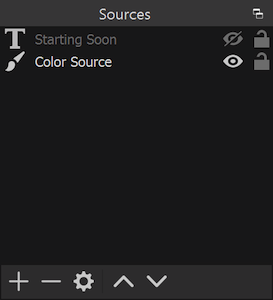
Click + below the OBS Studio Sources dock to add a source. Image source: OBS Sources Guide
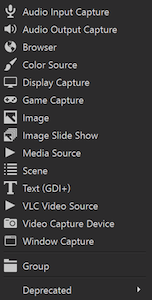
Choose Browser from the source list. Image source: OBS Sources Guide
Give the new source a name you will recognize later. Including the service and purpose makes it easier to find when a scene contains many sources.
DORODORA Donation Alert
If the same Browser Source already exists in another scene, reuse it with Add Existing. When the same widget should appear across multiple scenes, reusing one source is easier to manage than creating several independent copies.
3. Set the Browser Source URL and Dimensions
When the Browser Source properties open, paste the DORODORA Browser Source URL into URL. Leave Local file turned off because it is not needed.
The simplest approach is to match the source dimensions to your stream's base canvas. For a 1080p stream, use:
Width: 1920
Height: 1080
For a 720p stream, you can use 1280 × 720. Find the exact value under Settings → Video → Base (Canvas) Resolution in OBS.
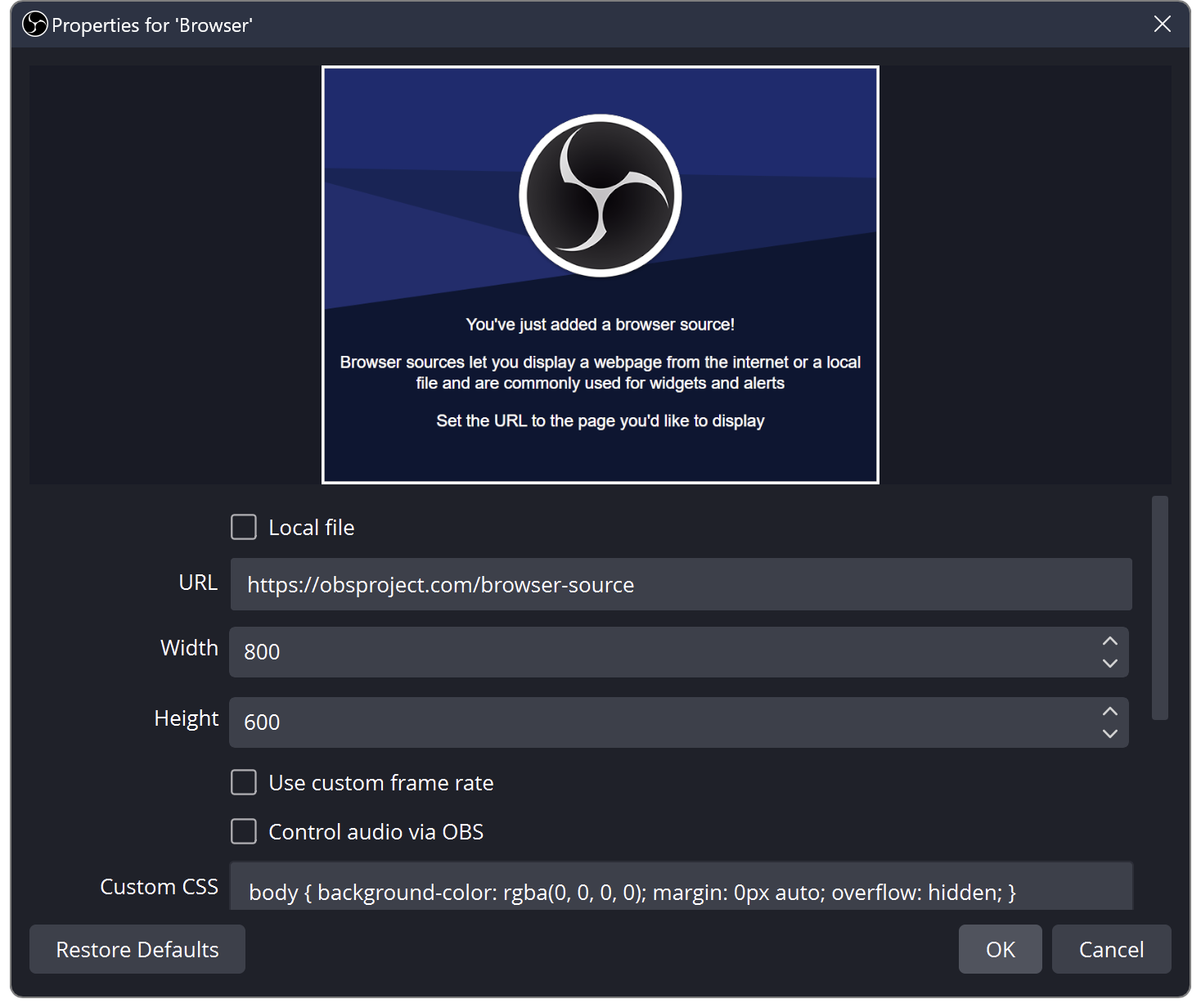
Enter the URL, width, and height in the Browser Source properties. Image source: OBS Browser Source
The following values are a reliable starting point for the remaining options.
| Option | Recommended start | Reason |
|---|---|---|
| Use custom frame rate | Off | The default 30 FPS is enough for an initial test. |
| Custom CSS | Keep the default | Keeps the transparent background and margin removal. |
| Shutdown source when not visible | Off | Avoids unnecessarily disconnecting the widget during scene changes. |
| Refresh browser when scene becomes active | Off | Avoids reloading an alert that is already playing. |
According to the official OBS documentation, Shutdown source when not visible unloads the browser page when you hide the source or leave its scene. Refresh browser when scene becomes active reloads it when you return. A real-time donation alert usually works best when it stays connected, so start with both options turned off.
If you see Control audio via OBS, turn it on. TTS from the Browser Source will then appear as a separate item in the Audio Mixer, letting you manage its mute state, volume, and monitoring independently from other sounds.
Click OK when you are finished.
4. Position and Size the Alert
Select the Browser Source to show a red bounding box in the OBS preview. Drag the box to adjust its size and position.
If you entered the full canvas dimensions, first fit the source precisely to the screen.
- Windows: Right-click the source and choose
Transform → Fit to Screen. - macOS: Right-click the source and choose
Transform → Fit to Screen. - Shortcut:
Ctrl+Fon Windows orCmd+Fon macOS.
If the widget already controls where its alert appears, there is no need to crop or shrink the Browser Source itself. Keeping it at full-canvas size reduces the chance of clipping an alert animation when the resolution changes or the animation moves across the screen.
The Browser Source must sit above the game or background in the Sources list. Sources higher in the OBS list are rendered in front, so an alert can be playing correctly but remain hidden if it is below Game Capture.
5. Send a Test Alert
You do not need to wait for a real donation. In Message (TTS) in the DORODORA Stream Console, press Test Alert to send a test message to the widget.
Before you press the button, check that:
- OBS is running.
- The eye icon for the Browser Source is on.
- The DORODORA Browser Source URL was pasted correctly.
EnableandEnable TTSwere saved in DORODORA.
Press Test Alert when ready. The basic connection is complete if the alert appears in the OBS preview and TTS plays.
6. Set TTS Volume and Audio Monitoring
If the alert appears but TTS is silent, check the OBS Audio Mixer first. Send a test alert and watch whether the volume meter for the DORODORA Browser Source moves.
When the Volume Meter Moves
Audio is reaching OBS. Check these settings:
- Make sure the source is not muted in the Audio Mixer.
- Make sure its volume fader is not too low.
- In
Advanced Audio Properties, confirm that the source is assigned to the track used by the stream. - If you also want to hear it locally, set
Audio MonitoringtoMonitor and Output.
Viewers may still hear the source when monitoring is set to Monitor Off. Audio monitoring determines whether the streamer also hears the sound through headphones or speakers. Do not assume the broadcast is silent just because you cannot hear it locally.
By contrast, Monitor Only (mute output) can remove the source from the broadcast output. Donation TTS that both the streamer and viewers should hear will generally use Monitor and Output.
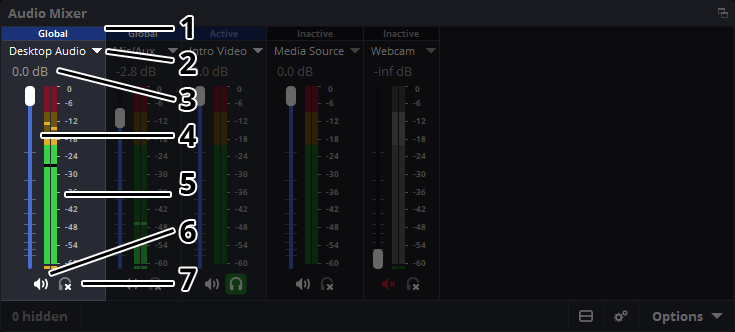
Check the volume meter, fader, mute, and monitoring state in the Audio Mixer. Image source: OBS Audio Mixer Guide
When the Volume Meter Does Not Move
Audio may not be reaching OBS from the Browser Source.
- Open the Browser Source properties again.
- Turn on
Control audio via OBSif it is available. - Confirm that the URL is the Browser Source URL for message alerts.
- Click
Refresh cache of current pagein the properties. - Send another
Test Alertfrom DORODORA.
Refreshing a Browser Source can interrupt an alert that is already playing. Do this during testing rather than during a live stream.
What to Check When the Alert Does Not Appear
The Browser Source Is Behind Another Source
Move the DORODORA Donation Alert above Game Capture, images, and color sources in the OBS Sources list. Also check that its eye icon is on.
You Pasted the Wrong URL
The donation page URL and Browser Source URL serve different purposes. OBS needs the Browser Source (URL) shown under Message (TTS) in the DORODORA console.
Check for spaces before or after the address and make sure the complete URL was copied. Clicking the URL field to copy it is safer than selecting it manually.
You Did Not Save the Settings
After turning on Enable or Enable TTS, press Save. If you only changed the switches and moved to another page, the previous settings may still be active.
The Test Was Sent but Plays Off-Screen
Right-click the Browser Source and choose Transform → Reset Transform, followed by Transform → Fit to Screen. Also confirm that the Browser Source width and height match the OBS base canvas.
Alerts Stop After Changing Scenes
Turn off Shutdown source when not visible in the Browser Source properties. When enabled, the browser page closes as soon as you leave the scene and starts a new connection when you return.
If the same alert should appear in several scenes, reuse the same Browser Source with Add Existing instead of creating a new widget in each scene.
Always Check a Recording Before Going Live
Even if the alert appears in the OBS preview and you hear TTS in your headphones, the actual broadcast output can differ. Make a one- or two-minute test recording before going live and play the result back.
Check that:
- The donation alert is not hidden behind the game or webcam.
- The donor name and message are readable.
- TTS is not much louder or quieter than the microphone.
- The alert sound and TTS are not buried under game audio.
- The beginning or end of the TTS is not cut off.
- A test alert still works after changing scenes.
The official OBS audio guide also recommends recording under normal conditions and listening back before a live stream. The finished recording is more reliable than judging audio only by the mixer meters.
Frequently Asked Questions
Can I Share the Browser Source URL with Viewers?
No. Share the DORODORA donation page with viewers. The Browser Source URL is a widget address that should only be entered in OBS. Do not expose it on stream or in public posts.
What Resolution Should I Use for a Donation Alert Source?
Start with the same size as the OBS base canvas. Use 1920×1080 for a 1920×1080 canvas or 1280×720 for a 1280×720 canvas.
If I Can Hear TTS, Will Viewers Hear It Too?
Choose Monitor and Output for the source in Advanced Audio Properties when both the streamer and viewers should hear it. Always confirm the result with a test recording.
Can I Turn Off TTS but Keep the Visual Alert?
Yes. In DORODORA Message (TTS) settings, leave Enable on, turn Enable TTS off, and save. The visual message alert remains active without reading the message aloud.
Can I Receive Donations Without Running OBS?
Payments through the donation page are independent of OBS. However, without OBS running and the Browser Source connected, real-time alerts cannot appear on your stream. You can review and manage incoming donation events in the DORODORA Stream Console.
Final Checklist
The three essentials for an OBS donation alert are the correct Browser Source URL, the right source order, and working audio output. Enable messages and TTS in DORODORA, copy the dedicated URL, and paste it into an OBS Browser Source to complete the basic connection.
Then send a Test Alert, check the Audio Mixer, and make a test recording. The sound the streamer hears and the sound sent to the broadcast can differ depending on monitoring settings, so listening to the recording is an important final step.
DORODORA combines a donation page, AI TTS, Voice Cloning TTS, an OBS alert URL, and a Stream Console in one workflow. If you want donation messages to become part of the stream rather than remain a quiet payment notification, start by configuring message alerts in the Stream Console.
Set Up DORODORA Donation Alerts
References
- OBS Browser Source: https://obsproject.com/kb/browser-source
- OBS Sources Guide: https://obsproject.com/kb/sources-guide
- OBS Audio Mixer Guide: https://obsproject.com/kb/audio-mixer-guide